Laptop Won't Turn On? 7 Things to Check Before You Panic
A blank screen doesn't always mean a dead motherboard. Here's the exact troubleshooting order our Philadelphia technicians use before opening the case.
Don't Panic — A Blank Screen Isn't Always a Dead Motherboard
"My laptop won't turn on" is one of the most common phrases we hear at our Philadelphia repair counter, and it covers a huge range of problems — from a $15 charger to a $300 motherboard repair. Before you assume the worst, run through these checks in order. It's the exact sequence our technicians use before ever opening the case.
- Check the charger, not just the laptop. Look for a light on the power brick itself. Try a different wall outlet, and if you own a spare charger or a friend's compatible one, test with that. Charging bricks and cables fail far more often than people expect, especially the thin USB-C cables that get bent at the connector every day.
- Do a real hard reset. Unplug the charger, hold the power button down for 20-30 seconds, then plug in and try again. This drains residual power from the capacitors and clears a surprising number of "stuck" boot states. On laptops with a removable battery, take the battery out for a minute first.
- Rule out the screen, not the computer. Plug the laptop into an external monitor or TV via HDMI. If you see a desktop appear on the external screen, your laptop is actually turning on fine — the problem is an isolated screen or backlight failure, which is a much simpler and cheaper repair than a dead board.
- Listen and watch closely. Do the fans spin? Do you hear a series of beeps, or see the caps lock light blinking in a pattern? Most laptop manufacturers use beep codes or blink patterns to indicate exactly which component is failing (RAM, GPU, or the motherboard itself) — these codes are the fastest way for a technician to diagnose the issue without disassembly.
- Reseat the RAM, if you can access it. On laptops with a removable bottom panel, a stick of RAM that has worked itself slightly loose (from heat cycles or being carried in a bag) is a classic cause of a laptop that won't POST. Removing and firmly reseating each stick fixes this more often than people expect.
- Inspect the charging port for damage. A DC jack or USB-C port that wiggles, feels loose, or only charges when the cable is held at an angle has likely cracked its solder joints from months of being plugged in at a desk. This is repairable at the board level and doesn't require replacing the whole motherboard.
- Smell it before you power it on again. If there's ever a burning smell, visible corrosion, or the laptop was recently exposed to liquid, stop trying to power it on. Repeatedly powering on a shorted board causes more damage with every attempt and can turn a $150 repair into a $400 one.
"The number one mistake we see is someone charging a laptop over and over hoping it'll eventually catch — when the actual fault is a $20 charging port."
Dealing with this yourself?
Get a free quote in minutes.
When It's Actually the Motherboard
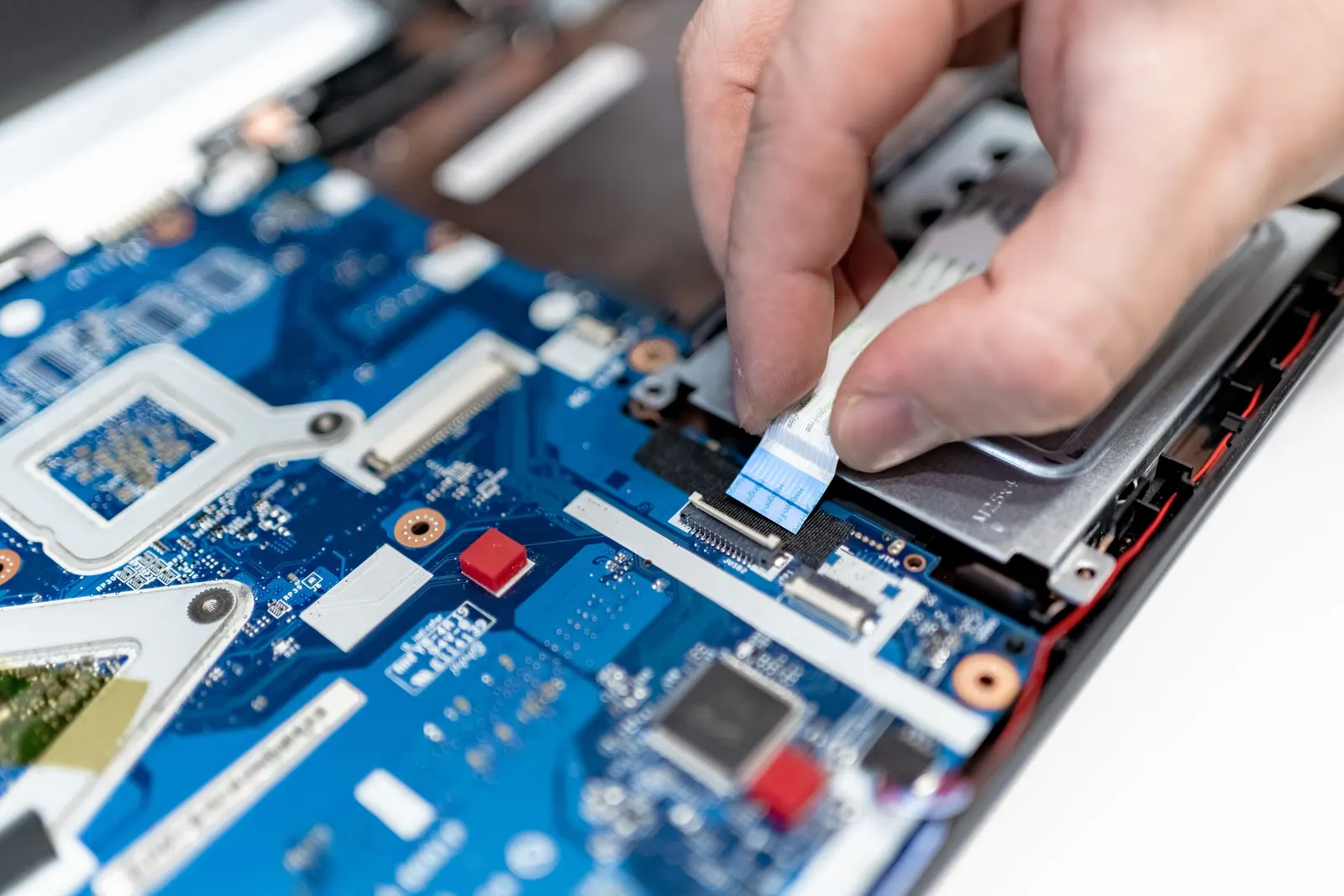
If you've been through all seven steps and the laptop is still completely unresponsive — no lights, no fan spin, no beeps — the issue is likely on the motherboard itself: a failed power management chip, a short caused by liquid damage, or physical trauma from a drop. This is exactly the kind of component-level failure our microsoldering team diagnoses under a microscope instead of declaring the board dead.
Bring It to Philadelphia's Repair Experts
At AV Phone Repairs, we run a full diagnostic on every laptop that comes in unresponsive — Mac or PC — before quoting a single dollar of work. Most of the time, the fix costs far less than a new laptop, and your files, photos, and installed software stay exactly where you left them.
Need expert help?
Our Philadelphia team is ready to inspect and repair your device today with a full warranty.